Verify Shadowrocket on its App Store product page—not by search ranking or name alone. Whether you’re buying for the first time, restoring the app on a new device, or checking a similarly named app, confirm the full developer name, compare the official icon, and check the app ID in the product link. Once all three match, review the price, compatibility, and purchase status.
1. Verify the app before checking its purchase status
Use search results to find the app, then verify its identity on the product page. Seeing the name Shadowrocket, a rocket icon, or a similar name is not enough. On the product page, check the developer, icon, and app ID together; none of these checks can replace the others.
A price, Open, or redownload button reflects the purchase and installation status for your account and device; it does not verify the app’s identity. The button may vary depending on your purchase status. To confirm you have the right app, check all three details above.
Bottom line: Verify before you pay
Match the full developer name and app ID, then check the icon. If any detail doesn’t match, return to the official app verification page on this site and reopen the intended product. Don’t proceed with a purchase from the page you’re checking.
2. Check the App Store product page in five steps
These steps apply to iPhone and iPad. App Store labels may vary with your system language. In English, Search, Share, and Copy Link are the actions for searching, sharing, and copying a link. Focus on the product page’s identifying details.
-
Open the App Store
Open App Store → Search and enter the full name, Shadowrocket. You can also visit the App Store app verification page on this site to open the specified product. Open its product page before making a decision—don’t verify the app from the search results list.
-
Check the developer
Look for the developer near the product name, then check the related details in the Information section. The developer should be Shadow Launch Technology Limited. If the name is truncated, expand it or open the relevant information page to see the full name.
-
Compare the icon
Check that the icon at the top of the product page matches the official icon shown below. Look for the white background, blue-purple outlined rocket, and overall design. Don’t rely only on whether the image contains a rocket, and don’t mistake an icon shown in a screenshot for the icon at the top of the App Store page.
-
Check the link
On the product page, use Share → Copy Link, then inspect the copied address. The intended product link contains
id932747118in its path. If you open the product page in a browser, you can also check this part of the address bar. -
Confirm your purchase
Once all three details match, review the price and Compatibility information shown by the current store, then follow the App Store prompts to buy or restore the app. Check the App Store page for system requirements and whether the purchase is universal.
3. Compare the full developer name and official icon
Check the developer name as a complete string: Shadow Launch Technology Limited. Don’t rely on just “Shadow” or “Technology,” and don’t confuse a company name in the product description with the name in the developer field. Check the developer information displayed on the product page.
- Where to check: Find the developer information on the product page. If the name is truncated due to limited space, open the full details.
- How to check: Confirm each part of the name—Shadow, Launch, Technology, and Limited. Don’t mistake a shortened display for a full-name match.
- Additional checks: Also compare the icon at the top of the product page and the product link ID. Don’t decide based on the description or search result order.
The image below is the official icon used on this site. It helps identify the app; it is not a screenshot of the app’s interface. Compare the overall shape and colors. The display size and App Store layout may differ, so the image dimensions do not need to match exactly.
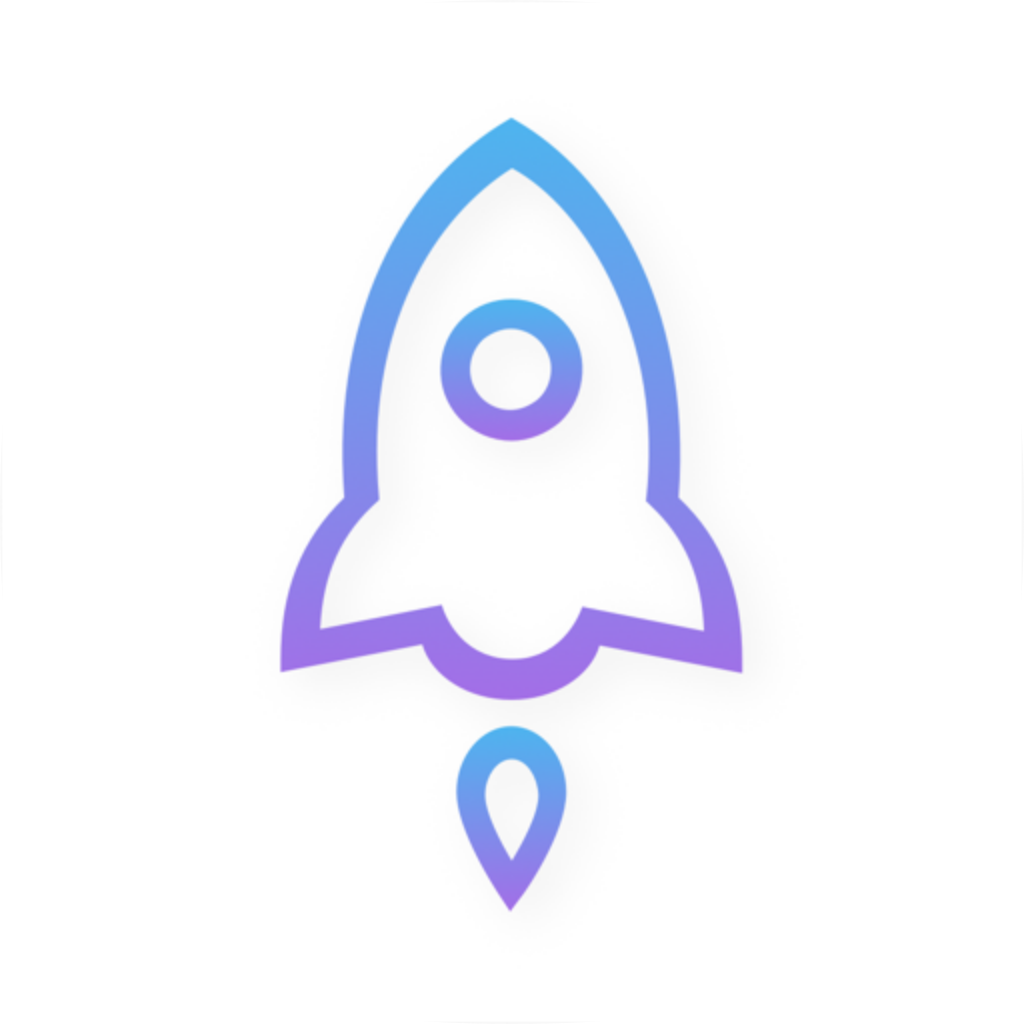
The icon is a useful visual clue, but it shouldn’t be the only basis for identifying the app. Even if the name and artwork look similar, also check the developer and app ID. Conversely, if the small icon in search results is hard to make out, don’t assume it’s a different app—open the product page and check there.
4. Find the app ID and understand regional store paths
The App Store product link used on this site is shown below. Check for id932747118 at the end of the path; don’t rely on the name Shadowrocket as the sole identifier. The app ID identifies the specific product, while the name in the URL makes the link easier to read.
https://apps.apple.com/us/app/shadowrocket/id932747118

Product ID: 932747118
Path identifier: id932747118
Developer: Shadow Launch Technology Limited
/us/ is part of the store’s regional path, not the app ID. When you open a link in the App Store, the page you see may depend on your account’s region. A different regional path or extra URL parameters don’t necessarily mean it’s a different app. Check the numeric product ID in the path and the developer information on the current page.
| Field | Product value | What to check |
|---|---|---|
| Product name | Shadowrocket | Find the app you’re looking for; the name alone doesn’t verify it |
| Developer | Shadow Launch Technology Limited | Match every part of the full name shown on the product page |
| Product path ID | id932747118 | Confirm which specific product the link points to |
| Regional path | /us/ | Understand the store page context; it doesn’t replace the product ID |
5. Buying and restoring: Check your account, then device compatibility
Shadowrocket is a paid client for Apple platforms, available exclusively through the App Store and primarily used on iPhone and iPad. Compatibility with Mac, Apple TV, and Apple Vision can also be checked on the same App Store page. Refer to the App Store page for supported devices, system requirements, and whether the purchase is universal.
A one-time purchase refers to how you pay for the client. Buying the client ≠ buying a service plan: after installation, connecting still requires a valid configuration and a service you already have. This site does not provide, sell, or recommend nodes or subscriptions. Buying the app does not include the service needed to connect.
- First-time purchase: After verifying the app, check the price shown for your account’s store and follow the App Store prompts to confirm the transaction.
- Already purchased: Use the original purchasing account to find Shadowrocket in your App Store purchase history. Open the product page and check the developer and app ID again.
- New device: First check device compatibility and your account status, then restore the app. Restoring the app and migrating its configuration are separate steps.
- The page still shows a price: Check the account currently signed in and its store region, then review your original purchase history. Don’t pay again just because the button looks different.
Pricing, purchase history, and compatibility depend on the current store environment; they don’t verify the product’s identity. For help with purchases or restoration, see the restore purchases guide. For device support, check Compatibility on the product page.
6. Connection behavior after installation doesn’t verify the app
Whether you can connect and whether you have the right app are separate questions. In Shadowrocket, you can check your connection and configuration in Home, Config, and Settings. A connection failure may involve a service you already have, the selected configuration, or routing settings; one test result can’t tell you whether you bought the right product.
For example, Config, Proxy, and Direct under Home → Global Routing change how requests are handled. The comparison below covers Shadowrocket’s routing settings only, to distinguish app verification from configuration troubleshooting. Scene handles requests according to configured scenarios, so check its settings separately; it doesn’t mean all traffic is always proxied or sent direct.
Config
RecommendedHandle requests according to the current configuration. Under Rule, rules such as DOMAIN-SUFFIX, GEOIP, and IP-CIDR are evaluated, and the policy specified by a matching rule determines where traffic goes. FINAL serves as the fallback rule; unmatched requests do not all automatically go direct.
Best for: Everyday use with a valid configuration when you need rule-based routing.
Proxy
Handle requests through a proxy without the usual routing based on the rules in Config. Before switching, make sure the selected proxy is working. A successful connection after switching to Proxy does not verify the app’s identity.
Best for: Separating proxy connectivity issues from rule-related issues when you already have a valid service.
Direct
Handle requests directly without using a proxy for normal forwarding. A successful direct connection only shows that the destination is reachable on your current network; it doesn’t show that your proxy configuration is working.
Best for: Checking direct connectivity on your current network and recording it separately from proxy connection results.
Bottom line: Check app identity and connectivity separately
First complete all three checks on the App Store. If the product details match but you’re having connection problems, note Global Routing, the current configuration, and the selected proxy, then troubleshoot using the guides. Don’t keep searching for and buying other results.
Likewise, Settings → On Demand controls when connections start; it can’t correct a purchase of the wrong app and isn’t proof of app identity. If you’re new to the app, first verify and install the product, then import a configuration you already have. Check the connection toggle, Global Routing, and On Demand separately so you can identify the cause if something goes wrong.
- App identity: Return to the App Store and check the developer, official icon, and
id932747118. - Getting the app: Check your account’s purchase history, regional messages, and product compatibility.
- Connection issues: Use the quick start guide to check your existing configuration. For rule definitions, see the configuration reference.
Getting Shadowrocket
First verify the developer, Shadow Launch Technology Limited, the official icon, and app ID 932747118. Then follow the App Store prompts to buy or restore the app. Buying the client ≠ buying a service plan; after installation, use a valid configuration you already have.